You bought a font, the download finished, and the font menu in your design app looks exactly the same as before. In nearly every case the cause is one of five small things: a file still sitting inside a ZIP, the wrong file type, an app that was open during the install, a per-user install that one program cannot see, or a duplicate copy getting in the way.
This guide covers how to install fonts on Windows 10, Windows 11 and macOS, which file to pick from the download, and how to fix a font that refuses to appear. The steps work for any OTF or TTF file, including every font in our shop.
Quick steps
- Unzip first: right-click the ZIP and choose Extract All (Windows), or double-click it (Mac).
- Pick one format: install the OTF file. Use TTF only if an app has trouble with OTF.
- Windows: right-click the font file and choose Install, or Install for all users.
- Mac: double-click the font file and click Install in the Font Book window.
- Restart your apps: close and reopen Cricut Design Space, Word, Photoshop or whatever you plan to use.
Before you install: what is in the download
Most font downloads arrive as a single ZIP file. Windows lets you look inside a ZIP without extracting it, and that is where many installs go wrong: you can double-click a font from inside the archive and even see a preview, but the install either fails or points to a temporary folder that disappears later. Extract the whole folder to somewhere permanent, such as Documents, before you do anything else.
Inside you will usually find some of these:
- OTF (OpenType): the best choice for desktop use. It carries the extra features some fonts include, such as ligatures and stylistic sets.
- TTF (TrueType): a fallback that works almost everywhere. Keep it for the rare app that does not read OTF well.
- WOFF / WOFF2: web fonts for websites. Do not install these on your computer. They are not meant for desktop apps, and using them online needs a webfont licence.
Install either the OTF or the TTF version of a font, not both. Two copies with the same name can confuse apps, which then show the wrong weight or skip the font entirely.
How to install fonts on Windows 10 and Windows 11
- Open the extracted folder and find the .otf files.
- Right-click a file and choose Install. On Windows 11, if you do not see it straight away, click Show more options first.
- For a family with several weights, select all the files (Ctrl + A) and install them in one go.
Two other routes do the same job. Double-click a font file to open the preview window and click Install at the top. Or open Settings, go to Personalization > Fonts, and drag the files onto the drop area at the top of the page.
The difference between Install and Install for all users matters more than it looks. A plain install puts the font in your own user profile. Install for all users (it needs administrator rights) puts it in the main Windows Fonts folder. Some older programs and a few cutting-machine apps only look in that main folder, so if a font installs fine but one program cannot see it, reinstall it with Install for all users.
How to install fonts on a Mac
- Double-click the ZIP to unpack it in your Downloads folder.
- Double-click the .otf file. Font Book opens a preview window.
- Click Install. The font is now available to every app on your account.
For a family, select all the files in Finder, then drag them onto the Font Book window. Font Book checks each file as it installs. If it shows a warning, read it before clicking through. A warning about a duplicate usually means an older version of the same font is already installed, and you should remove the old one so apps pick up the new file.
By default Font Book installs fonts for your user only. That suits nearly everyone. If you share the Mac with another account and both need the font, change the default install location in Font Book’s settings to Computer.
After you install: getting the font into your app
Most apps read the font list once, when they start. Anything that was open during the install will not show the new font until you quit it completely and open it again. On a Mac, closing the window is not enough; use Quit from the app menu (Cmd + Q).
- Cricut Design Space: quit and reopen, then look under the System fonts filter in the font menu. Script fonts need welding before you cut; our guide on how to weld script fonts in Cricut Design Space walks through it.
- Silhouette Studio: restart the software and the font appears in the Text panel’s font list.
- Word, Photoshop, Illustrator: restart the app. In Word, some weights of a large family show up as separate entries in the font list rather than under Bold.
- Canva: installing a font on your computer does nothing in Canva, because Canva runs in the browser with its own font library. You upload the file to Canva instead, which needs Canva Pro or Teams. See how to add your own font to Canva.
Font not showing up? Work through this list
- Is it still zipped? Check that you installed from the extracted folder, not from inside the ZIP.
- Did you restart the app? Fully quit it, then reopen. If the font is still missing, restart the computer once.
- Are there duplicates? Look in Settings > Personalization > Fonts (Windows) or Font Book (Mac) for two copies with the same name. Remove the extra one.
- Is it installed for your user only? On Windows, reinstall with Install for all users.
- Are you searching for the right name? Fonts are listed by family name, which can differ from the file name. Type the first few letters of the font’s name in the app’s font box rather than scrolling.
Fonts to test your install with
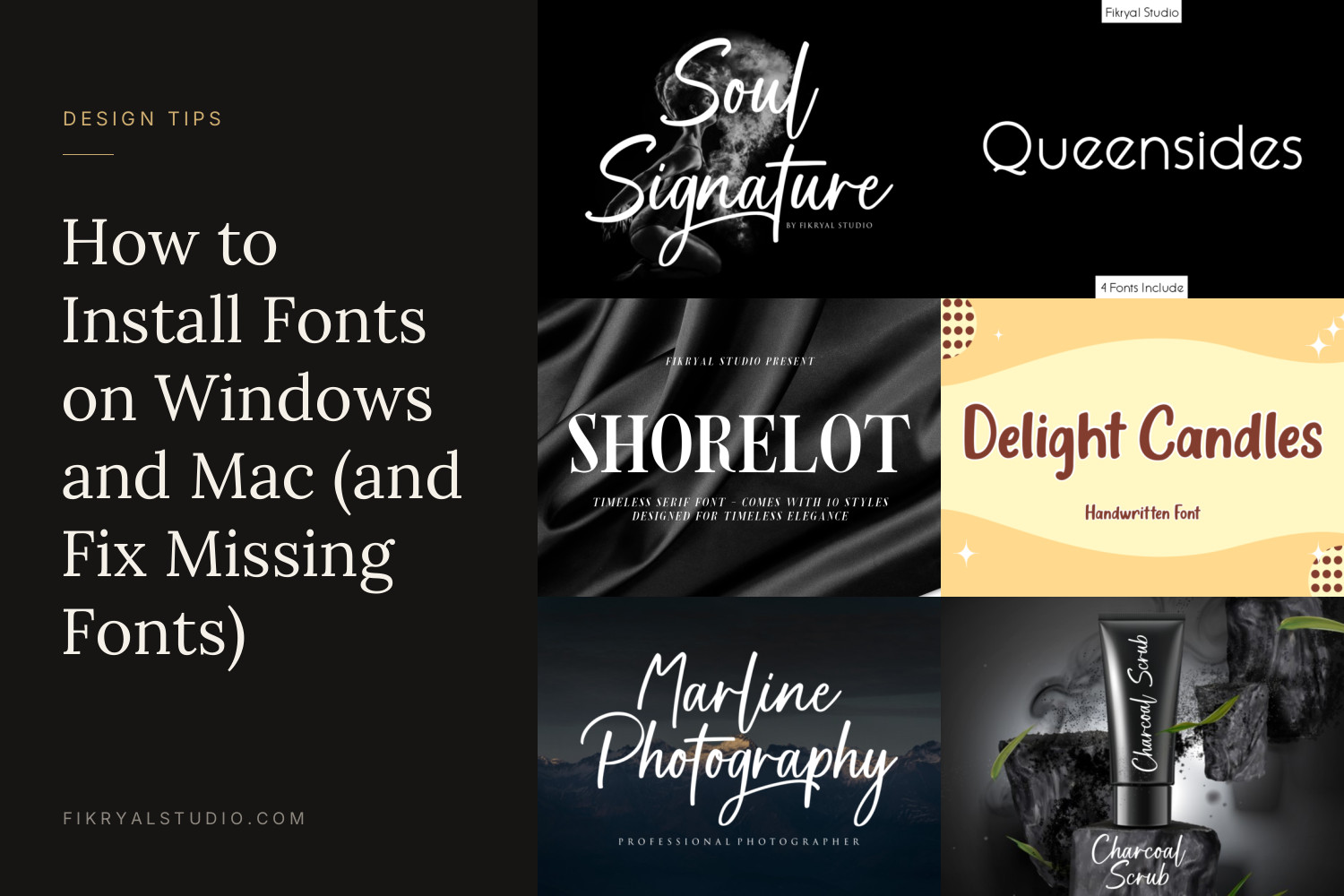
These four come in different shapes and family sizes, so each one is a useful check on a different part of the process.
Soul Signature

A fast, right-leaning signature script with a dry-brush texture and long, loose tails on letters like the g. It reads like a confident pen signature, which makes it a natural fit for photography watermarks, logo marks and short product names.
The product notes list ligatures, three stylistic sets (ss01 to ss03) and extra swashes. These live in the OTF file, so install OTF and use an app that can reach them, such as Illustrator’s Glyphs panel (Window > Type > Glyphs). See Soul Signature
Queensides

A light, rounded sans with near-circular O and Q shapes and an open, airy rhythm. It works for boutique branding, labels and clean social graphics, and pairs well with a script like Soul Signature.
Queensides comes in Light, Regular, Medium and Bold, with OTF, TTF and WOFF files for each. Install the four OTF files together and skip the WOFF files, which are for websites. See Queensides
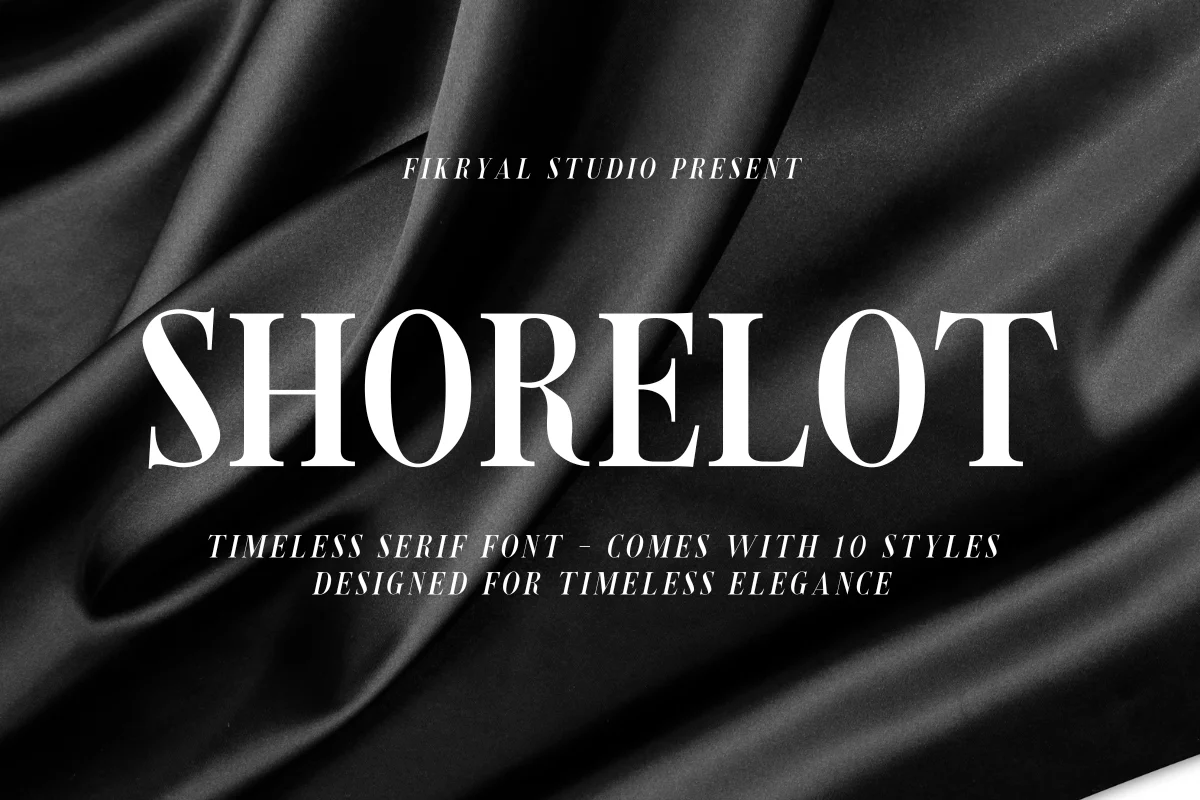
Shorelot

An all-caps serif with strong contrast between thick and hairline strokes and narrow, upright proportions. It suits luxury packaging, editorial headings and event signage where a few words need to feel formal.
With ten styles from Light to Black, including italics, it is the best test of a family install. If an app only shows one or two styles afterwards, check the style dropdown next to the font name before assuming files are missing. See Shorelot
Delight Candles

A chunky, upright handwritten display font with soft, rounded strokes and a cheerful bounce. It is made for kids’ party printables, bakery labels and cut vinyl, where thick strokes are easier to weed.
A single-style font like this is the quickest way to confirm the basic install works before you move on to bigger families. See Delight Candles
What the licence covers once a font is installed
Installing a font and being allowed to use it commercially are two separate things. Every font in our shop has a free personal-use version for your own non-commercial projects, and it installs exactly the same way.
For paid work, the Desktop License covers personal and commercial projects, including end products for sale up to 2,000 sales, prints or pieces, and logo use. It does not cover social media or websites. The Monetized Social Media License covers social media content and ads up to 100,000 views a month and allows the licensee to embed the font in web tools such as Canva, Templett and Corjl. The Webfont License covers one website. Some fonts, including Delight Candles, have their own licence terms, so check the product page for those.
Read the full terms on our licence page, or start with which font licence you need.
FAQ
Should I install the OTF or the TTF file?
Install OTF in most cases. It supports the extra OpenType features that script fonts often rely on. Use TTF only if a particular app has trouble with the OTF, and never keep both versions of the same font installed.
Why is my font not showing up in Cricut Design Space?
Design Space reads your system fonts when it starts, so quit it fully and reopen it, then check the System fonts filter. If it is still missing on Windows, reinstall the font with Install for all users and restart the computer.
Do I need to install a font to use it in Canva?
No. Canva does not use the fonts on your computer. You upload the OTF or TTF file through Canva’s Brand Kit, which requires Canva Pro or Teams, and the font must be licensed for that use.